Inquiry / Distributors
日本語 中文(简体)

RICOH SC-20 FAQs

A built-in Linux system.
Select [Sound Settings ...] from the [System Settings] menu to change the volume.
Specifications. Example: If there is a "Test" folder (file), you cannot create a "test" folder (file).
Please wait for a while and check. If the problem persists, reboot the system and check again.

- Check point > Set the points to check. (Up to 20 places)
- Anchor point > Set the reference to check.
A unique shape setting without multiple locations is best.
- Anchor point search area > Set the area for searching the anchor point.
These are easier to recognize if you configure the area, making the anchor point easier to search for.
In some cases, it can be easier to recognize if you set a larger, unique location.

The language can be changed in System Settings > Initial Settings
The following display languages are supported: Japanese, English, Chinese, traditional Chinese, German, French, Spanish, Korean, Turkish Only alphanumeric characters can be used for input in the application.

In the [System Settings] menu [Preset Settings ...] option, select "Use a fixed Reference ID".
Or select "Use a fixed Job ID" to hide the reference ID.
* The [Change Reference ID] screen does not appear in the following cases:
When [External Control] is enabled
When [Use a fixed Reference ID] is enabled in [Preset Settings]
When [Enter Job ID and Reference ID at the same time] is enabled in [Preset Settings]
In the [Job Settings] menu [Other Settings] option, tick the [Do not start automatically] box.
In the [Job Settings] menu [Other Settings] option, select User Mode Settings and tick the "Do not display the confirmation dialog" box.

3840 (H) x 2160 (V)
Approximately 8 million pixels.
Confirm
We recommend a height between 400 and 1,000 mm.
In some cases, this may be outside the range depending on your workpiece.
Yes, as long as it is locked in place, however, to ensure that the camera is not affected by outside light, so we recommend installing it directly above the work area.
We do not recommend the system for exterior inspection applications where the position cannot be determined, such as for scratches and soiling.
Although the system is not designed for moving objects, it may be able to detect them.
Please verify this before making a decision.
No, it cannot. The system uses images for judgments, so in some cases a correct/incorrect judgment can be made for clear differences in size, however, it is not designed for millimeter-level measurements.
No, it cannot.
Reason 1: Detection is not possible without a certain degree of stability in the positional relationship or shape.
Reason 2: The system has difficulty with reflective objects, such as plastic.
Please perform a check before packaging items in plastic bags, etc.

Yes, if the option function is purchased.
Please contact a sales representative for details.
There are no recommended devices.
Connection to external devices is possible via external I/O connection, TCP/IP socket communication, and EtherNet/IP communication.
An I/O check is possible in the [System Settings] menu [External I/O Settings ...] option.
You can confirm the connection if 0 and 1 switches back and forth on the monitor.
If it does not, please check the connection.
Yes, as long as you are using a USB barcode reader.
This can also be switched with the camera body if you purchase the option function.
By installing the optional "Additional Camera Function" (paid option), you may connect up to MAX 2 USB cameras and inspect from a total of 3 viewpoints.
Please check here for more information on optional functions.

You may also use a separate control device to control multiple cameras.
One Shot output is possible using the OK (OS) or FAIL (OS) signal.
No, SC-20 cameras cannot be linked together.
Please consider using a control device for controlling multiple SC-20 cameras.

Alternatively, by installing the optional "Additional Camera Function" (paid option), you may connect up to MAX 2 USB cameras and inspect from a total of 3 viewpoints.
Please check here for more information on optional functions.
No, cameras cannot be turned on remotely.
AC on startup is possible if you select "System startup with AC power input" in the [System Settings] menu [Power Settings ...] option.
EtherNet/IP is available.
A firmware of the camera must be Ver.1.1.0.0 or later.
Right-click operations on the USB touch panel are not supported.
  • Check if the profile of the device you are using is compatible with SC-20's compatible profile (SDP, L2CAP, GAP, HID).

  • Please check the manual etc. for the pairing method of the device you are using.

  • Your device may be in an invalid state. After pairing and canceling the device on a Windows PC, etc., try pairing again on this unit.
- You may need to enter a PIN code depending on the keyboard device. Try entering 0000 on the keyboard while pairing with the device.
Bluetooth audio devices are not currently available.
A software update will be available at a later date.
Audio (wav) files supported by SC-20 are 44.1kHz/16bit/Stereo, 48kHz/16bit/Sereo only.
Also, the audio device must support output in the above formats. The default sound file of SC-20 has a sampling rate of 48kHz. Please check if it works with sound files with a sampling rate of 44.1 kHz.
Depending on the device, you may not be able to adjust the volume of the sound from this unit. If the device itself has a volume adjustment function, please use that.
The cut may have been insufficient. Try disconnecting again.

microSD cards are supported.
Specifications: microSD / SDHC / SDXC x1 High Speed / UHS-I supported
The SD card may have reached its end of life or may have malfunctioned. Please try to replace the SD card.
*We recommend using an industrial-grade SD card if possible.

Data can be viewed in the following order in a CSV file:
1st column: Type of log (= 2: Job result log)
2nd column: Year, month, day
3rd column: Time
4th column: Job ID
5th column: Reference ID
6th column: User ID
7th column: Instruction step name
8th column: Inspection step name
9th column: Standard (sec)
10th column: Elapsed time (sec)
11th column: Inspection step mode (= Matching)
12th column: Inspection step judgment result (1 = OK, 2 = FAIL)
13th column: Image log path
14th column: Checkpoint ID
15th column: Checkpoint matching result (1 = OK, 0 = FAIL)
16th column: Anchor point matching score
17th column: Anchor point matching angle
18th column: Score for shape matching
19th column: Angle for shape matching
20th column: Matching processing time (msec)
21st column: Score for color matching
22nd column: Score for texture matching
Files can be created by date in designated folders.
* Note that video logs cannot be saved.
Files may be manipulated and used as you see fit.
In addition to the SD card, files can also be saved to shared network folders.

Please contact the salesperson in charge of your company for information on obtaining the license file.
Please refer to the document "Work Inspection Camera RICOH SC-20 Option Function<1D/2D code & OCR>License Certificate" delivered to you after purchasing the license. The steps from obtaining the license file to enabling option functions are detailed.
The general flow is as follows.

  • Apply for an account on the License File Issuing System from the URL or QR code written on the License Certificate.

  • Set a password using the link provided in the email sent later and log in to the License File Issuing System.

  • Download the license file from the License File Issuing System.

  • Make the license file readable by the SC-20 and activate the option function.


  Log in URL of “License File Issuing System”
  For other than EU region: https://apps.sc-activate-na.rinfra.ricoh.com/app
  For EU region: https://apps.sc-activate-eu.rinfra.ricoh.com/app
  For China: Please contact your sales representative.

* Before activating option functions, please update the camera software (firmware) to the latest version.
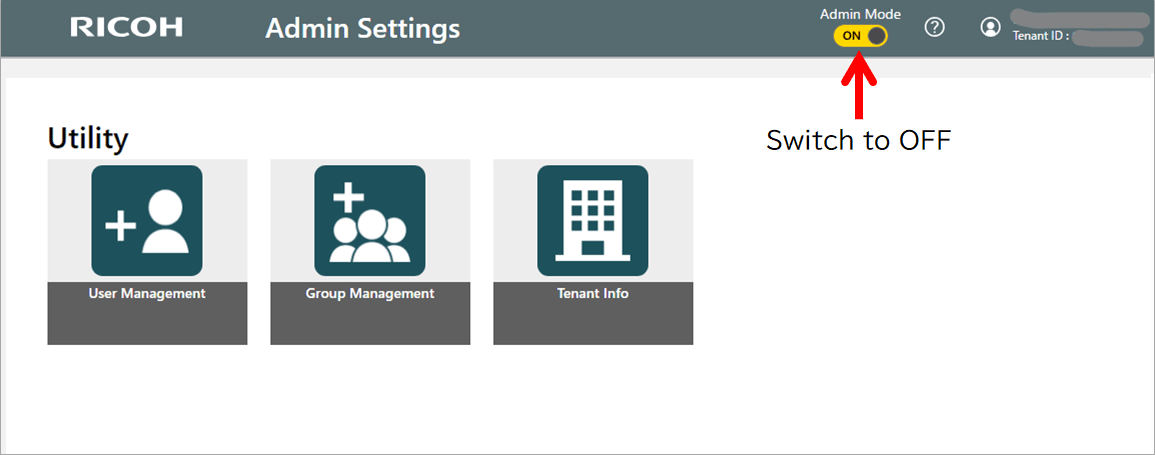
A. If the “Admin Settings (Utility)” screen is displayed, set the “Admin Mode” switch in the upper right corner to OFF and the " License File Issuing System" will be displayed.
License File Issuing System
After downloading, write the license file to an SD card or USB memory device, make it readable from the SC-20 main unit, and select [System Information...] in the [Help] menu of the SC-20 main unit menu.
For details, please refer to the "ENABLING THE OPTION FUNCTIONS" section of the Operating Instructions

Please contact a RICOH Japan sales representative or fill out the inquiry form on the website.
No, we do not offer installation options.

Please check the website.
Usage and introduction examples

Please see section 22 on P. 140 of the Operating Instructions for instructions on how to update the software.
Note that at least 2 GB of built-in memory space is required. The update takes about 5 to 10 minutes.
Please see section 22 on P. 140 of the Operating Instructions for instructions on how to update the software.
Note that at least 2 GB of built-in memory space is required. The update takes about 5 to 11 minutes.
If there are multiple versions of the update file, the update will not be completed correctly.
- Lens mount cap (already attached to the unit)
- Set of connector caps

The following items are included only in "models including an AC adapter":
- AC adapter
  - AC cord
Go to the [Help] menu [System Information ...] option.
Please contact a sales representative.
Data cannot be imported to a device with a lower application version than the device to which it was exported.
For example, data exported from a model with version 3.0.0.0 cannot be imported to a model with version 2.0.0.0.

Also, data cannot be imported between models with different option function statuses.